Seeing ‘Enable JavaScript’ or ‘Disable Ad Blocker’? Here’s How to Fix Websites
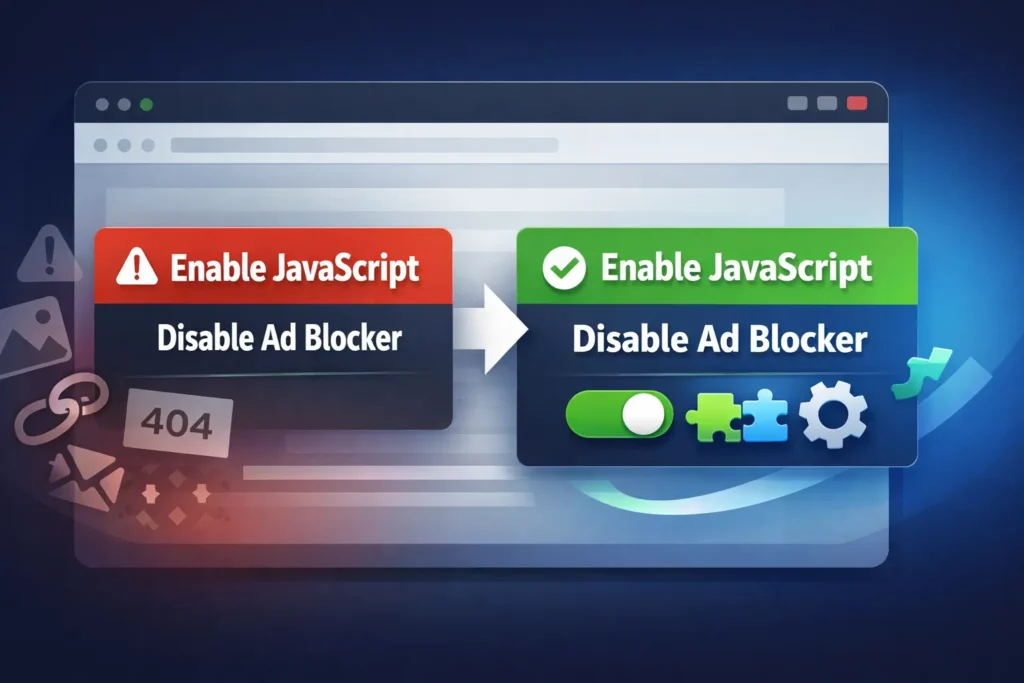
Have you ever visited a website and found it just wouldn’t load right? Maybe you saw a message telling you to ‘enable JavaScript’ or ‘disable your ad blocker’? These messages can be confusing. But they often point to simple reasons why a page isn’t working as it should.
Understanding these common website prompts can help you get back to viewing your favorite news, shopping, or social sites without trouble. This guide is for anyone who wants to easily fix these common viewing problems.
Why Some Websites Don’t Work Right
Most websites today are complex. They need different tools to show you pictures, videos, interactive menus, and more. When something goes wrong, it’s often because of two main things:
1. JavaScript is turned off.
2. An ad blocker is hiding parts of the page.
Let’s look at what these are and how they affect your online experience.
What Is JavaScript and Why Do Websites Need It?
Think of JavaScript like a busy helper for websites. It makes things move and change on a page without needing to reload the whole thing. For example, it helps with:
• Drop-down menus
• Photo slideshows
• Interactive maps
• Forms you fill out
• Live updates of news or scores
Without JavaScript, many parts of a website won’t work or look right. Sites that update information often, like news sites, rely heavily on it to show you the latest articles, stream videos, or manage how you sign in. If it’s turned off, the site might look empty, broken, or simply won’t let you click certain buttons.
What Is an Ad Blocker and Why Do Websites Care?
An ad blocker is a tool, usually an add-on in your web browser, that stops advertisements from showing up on websites.
Many people use ad blockers because:
• They can make websites load faster.
• They reduce distractions from ads.
• They can help protect against annoying or unsafe ads.
While ad blockers are helpful for users, they can create problems for websites. Websites, especially those that offer free content like news, often rely on ads to pay their bills and keep creating content. When an ad blocker stops these ads, the website loses money. Because of this, some sites might ask you to turn off your ad blocker or even block you from seeing content unless you do.
Some websites, like news sites, also offer paid subscriptions. Even then, they might still ask you to disable ad blockers. This is to make sure their site displays correctly, as ad blockers can sometimes hide other important parts of a page too.
Easy Steps to Fix Website Viewing Problems
Good news! Fixing these common issues is usually quite simple.
# How to Turn On JavaScript
Usually, JavaScript is already on in your web browser. But if it got turned off by mistake, here’s how to check and turn it back on for popular browsers:
• Google Chrome:
1. Open Chrome settings (three dots in the top right).
2. Go to ‘Privacy and security’.
3. Click on ‘Site Settings’.
4. Find ‘JavaScript’ and make sure ‘Sites can use JavaScript’ is selected.
• Microsoft Edge:
1. Open Edge settings (three dots in the top right).
2. Go to ‘Cookies and site permissions’.
3. Find ‘JavaScript’ and make sure ‘Allowed (recommended)’ is turned on.
• Mozilla Firefox:
1. Firefox usually has JavaScript on by default. If you suspect it’s off, it might be due to a browser add-on. Check your add-ons list and disable any that might block scripts, then restart Firefox.
• Apple Safari (on Mac):
1. Go to ‘Safari’ in the top menu and select ‘Preferences’.
2. Click on the ‘Websites’ tab.
3. On the left, find ‘JavaScript’.
4. Make sure the box next to ‘Enable JavaScript’ is checked, and for specific sites, make sure it says ‘Allow’.
After changing these settings, refresh the website page you were trying to view.
# How to Manage Your Ad Blocker
Most ad blockers show up as a little icon near your browser’s address bar. It might look like a stop sign or a shield.
To let a specific website load properly:
1. Click the ad blocker icon when you are on the website that isn’t loading right.
2. Look for an option like ‘Pause on this site,’ ‘Disable for [website name],’ or ‘Don’t run on this page.’
3. Click that option. The ad blocker will then allow ads and other elements on that specific site to show.
You can usually turn your ad blocker back on easily when you leave that website or if you want to block ads on other sites again.
What If It Still Doesn’t Work?
If you’ve tried the steps above and the website still isn’t working, don’t worry. Here are a few other simple things you can try:
• Clear your browser’s cache and cookies: These are temporary files that your browser stores. Clearing them can sometimes fix display issues.
• Try another web browser: Sometimes one browser just has a problem. Try opening the website in a different browser, like Chrome, Firefox, or Edge.
• Check your internet connection: Make sure your internet is working well and is stable.
• Restart your computer: A simple restart can often fix many small tech issues by refreshing your system.
Understanding these basic website messages makes browsing much smoother. You’re now ready to tackle those tricky website messages and enjoy all the content the internet has to offer!
